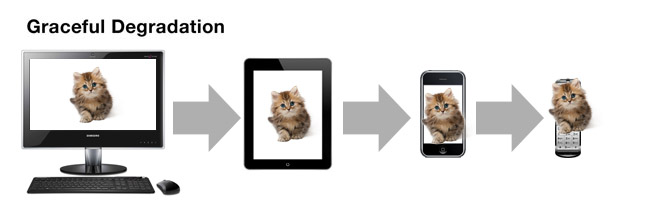
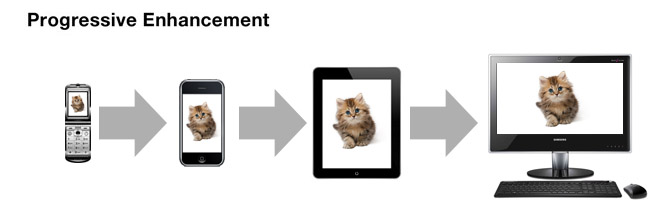
Graceful Degradation & Progressive Enhancement
Not-So-Graceful Degradation
Unfortunately the concept of graceful degradation sometimes deteriorates way past the point where the adjective “graceful” can reasonably be applied. The worst case is code like this:
Example Two
<script type="text/javascript" src="/menu.js"></script>
<noscript>
<p>Please upgrade to a browser that supports JavaScript.</p>
</noscript>
This is unacceptable for any serious web site, but may be forgiven on a small amateur site whose target audience is friends and family.
We, as web designers or developers, have no right to tell our visitors which browser they “should” use; nor do we have the right to tell anyone to “enable JavaScript.” We don’t know why this visitor uses Lynx or why that visitor has disabled client-side scripting. They may not even have the option of “upgrading” or “enabling JavaScript” because of bandwidth, hardware or budget constraints; IT department policy; or because they are not even using their own computer.
Graceful degradation is far better than having a site that is completely inaccessible to some users, but it is not the best approach. As with the visual design approach, it is often difficult to begin with all the features and then remove them one by one, without everything falling apart.
Progressive Enhancement
Progressive enhancement became known — at least under that name — in 2003, when Steve Champeon began using it on Webmonkey and during the SXSW conference. It starts at the opposite end from graceful degradation: begin with the basic version, then add enhancements for those who can handle them. Again, comparing it to the design approaches: this is the same basic thought as in structural design. That starts with the markup and adds styling on top of that, which is progressive enhancement all by itself.
The most common occurrence of progressive enhancement is probably the external CSS style sheet. It is ignored by non-CSS browsers — which thus get only the plain markup and render it according to their own built-in style sheets — but it is applied by modern graphical browsers, thus enhancing both the aesthetics and the usability for mainstream and advanced users.
Other examples of progressive enhancement are the various image replacement techniques, the Flash satay method and (sometimes) AJAX.
Progressive enhancement when it comes to JavaScript is becoming more common these days. The key to this is known as unobtrusive JavaScript. An unobtrusive script is silently ignored by user agents that do not support it, but is applied by more capable devices. Just like an external style sheet.
Let us revisit the navigation menu we examined as an example of graceful degradation. How would that be done using progressive enhancement?
We would begin by creating our markup, aiming for the lowest common denominator: HTML. A navigation menu is, semantically, a list of links. The order of those links does not affect the meaning of the list as a whole; thus it is an unordered list.
Example Three
<ul>
<li><a href="/">Home</a></li>
<li><a href="/products/">Products</a></li>
<li><a href="/services/">Services</a></li>
</ul>
This will work in everything from Lynx and Mosaic 1.0 to the latest versions of Opera, Firefox and Safari. Googlebot and its arachnoid cousins will also love it.
The next step is to add enhancements for the vast majority of users whose browsers support CSS. We add rules in an external CSS file to style the menu. After adding a link element with a reference to the external style sheet, it looks a lot better to most visitors, but it is in no way detrimental to those Lynx users or to the Googlebot. (OK, they’ll have to download a few more bytes, but it will be negligible even on a slow dial-up connection or a GSM mobile phone.)
But we can enhance this further by adding drop-down or fly-out or expanding sub-menus to the main items, using unobtrusive JavaScript. To reduce the amount of script code, we begin by assigning ids to the list items:
Example Four
<li id="products"><a href="/products/">Products</a></li>
<li id="services"><a href="/services/">Services</a></li>
Then we create a separate JavaScript file with a couple of functions:
Example Five
function addProducts()
{
// Find the li element to which we will add a sub-menu
var parent = document.getElementById("products");
// Make sure it exists (fail silently)
if (parent) {
// Create a nested unordered list
var ul = parent.appendChild(document.createElement("UL"));
// Add the list items and links
var items = [ ["Blue Widgets", "blue"],
["Red Widgets", "red"] ];
for (var i = 0; i < items.length; ++i) {
var li = ul.appendChild(document.createElement("LI"));
var a = li.appendChild(document.createElement("A"));
a.href = "/products/" + items[i][1];
a.appendChild(document.createTextNode(items[i][0]));
}
}
}
The addServices() function would look very similar. Then we need to be sure that the browser can handle those DOM functions:
Example Six
function createSubMenus()
{
// Make sure that the DOM functions we will use are supported
// (fail silently)
if (typeof document.getElementById != "undefined"
&& typeof document.createElement != "undefined"
&& typeof document.createTextNode != "undefined")
{
addProducts();
addServices();
}
}
This function makes sure that the main DOM functions used by addProducts() and addServices() are supported by the browser. If not, the function does nothing; it causes no harm and there will be no JavaScript error message or warning icon. This approach is called object detection and is infinitely better than the old-school browser sniffing scripts that stopped working as soon as a new browser (or a new version of an existing browser) was released.
Finally, to get the browser to call those functions as soon as the page has loaded.
Example Seven
if (window.addEventListener) {
window.addEventListener("load", createSubMenus, false);
} else if (window.attachEvent) {
window.attachEvent("onload", createSubMenus);
} else {
window.onload = createSubMenus;
}
Note that this piece of code is not enclosed in a function. It will add an event listener for the window’s “load” event, calling our menu-creating function immediately after the HTML document has finished loading. (We need to wait for that, so that the id attributes are available.)
Modern browsers will use the addEventListener() function specified in the DOM Level 2 (Events) specification, while Internet Explorer will use its proprietary attachEvent() function.
The last catch-all is not perfect: it will replace any existing onload handler created by a previous script. That is hardly unobtrusive. In real life we would need a slightly more complicated solution for this case, but I don’t want to make the examples unnecessarily complicated.
We will add a script element in the HEAD section of our document to load the external JavaScript file:
<script type="text/javascript" src="/menu.js"></script>
As a final step we would add CSS for those sub-menus and JavaScript event listeners to display or hide them, making sure to handle both mouse and keyboard activation, of course.

Graceful Degradation & Progressive Enhancement « B-link List responds:
Posted: February 6th, 2007 at 11:32 pm →
[…] read more | digg story […]
Mike Pearce responds:
Posted: February 7th, 2007 at 4:21 am →
Great article - I’ve always used progressive enhancement as it just felt ‘right’ - although I never knew what it was called!
Thanks!
Joe Dolson responds:
Posted: February 7th, 2007 at 6:03 pm →
Nice article, Tommy! Really appreciated the JavaScript code example - it was perfectly concise and understandable, even to my under-educated scripting brain.
Mike Cherim responds:
Posted: February 7th, 2007 at 8:36 pm →
I have to chime in with Joe, Tommy. Really terrific article.
Tommy Olsson responds:
Posted: February 8th, 2007 at 1:55 am →
Thanks, guys! The examples aren’t very realistic, but I wanted to keep them short and with as little distractions as possible. They exist in order to demonstrate principles, rather than as full-blown JavaScript tutorials.
Mat Jakob responds:
Posted: February 8th, 2007 at 2:33 am →
I’d love to read the article, but I have a problem to do so. I like to print interessting articles and read them on the way home from work (train) to fil out the dead time. Problem is, the paging on this and some other sites I came across lately makes it hard to print articles. I’ve looked hard to find the “print the entire article” button… no success. Shouldn’t the article be available for people who cannot or don’t want to read it on screen (especially on this site)? Am I missing something here?
Robert Wellock responds:
Posted: February 8th, 2007 at 6:10 am →
I like your “Besides…” part youngman.
Mike Cherim responds:
Posted: February 8th, 2007 at 8:54 am →
@Mat: We do have a print style sheet that should make it doable. What happens if you go to each page and print it with your browser? Do you get that page printed?
Mike Cherim responds:
Posted: February 8th, 2007 at 9:15 am →
Never mind, I see the problem: the comments are printed with each page. As a service to you and our other readers, this should help. Get Graceful Degradation & Progressive Enhancement as text. Please let me know if that works for you, as in prints the characters properly and wraps the lines as it should.
Update: I also added a block to the comments in the print style sheet so maybe that’ll give you two options.
Shane Holland responds:
Posted: February 8th, 2007 at 4:31 pm →
Very nice article, Tommy! Nice explanations, and a great overview. Good work.
Mat Jakob responds:
Posted: February 8th, 2007 at 6:13 pm →
The text version worked like a charm. Thank you! I could have printed the 4 pages seperately. Next to beeing tedious the comments would have been in the way. So thanks for removing them for print. For me and anybody else who likes to print long article it’s easiest to if i’m able to print the whole article at once. — END off topic comment –
@Tommy: Very good and clear explanation of the two concepts. I’ve read about and used them before but had not yet found such a clear explanation. And I really liked the example with the dependent selects. Great article, thanks!
Patrick responds:
Posted: February 13th, 2007 at 1:21 pm →
Removing the “Select” button in the double list AJAX example may not be the best idea. Blind users (or others who are required to navigate by keyboard only) hate lists that immediately accept a change when a new item is selected, because scrolling by keyboard changes the selected item. Causing the first list to immediately repopulate the second list when scrolling through it is okay, but the second list should not perform an action on selecting an item. The action should only be triggered by pressing the “Select” button, otherwise it is impossible to just look through the list using the arrow keys.
Tommy Olsson responds:
Posted: February 14th, 2007 at 3:00 am →
@Patrick: the second list should not be repopulated for each change in the first list when using the keyboard. Only when focus is transferred from the first list. Thus the “Select” button is superfluous if JavaScript is supported.
There is no event listener attached to the second list. The user has to activate the “Show Products” button to submit the form.
Your points are very relevant, but they are taken care of in this example (even though the code details are omitted for brevity).
AnySurfer blogt » Graceful Degradation versus Progressive Enhancement responds:
Posted: February 14th, 2007 at 11:30 am →
[…] Graceful Degradation versus Progressive Enhancement Geschreven door Roel Van Gils om 17u19 Twee termen waar je als web developer wel eens mee om de oren wordt geslagen. Maar wanneer spreek je nu eigenlijk over graceful degradation, en wat is dan progressive enhancement? Tommy Olsson legt uit dat het mes aan twee kanten snijdt. Weer wat bijgeleerd. […]
SitePoint Blogs » Handling JavaScript-disabled Browsers responds:
Posted: February 22nd, 2007 at 9:49 pm →
[…] If you’d like to read more about graceful degradation and progressive enhancement, I highly recommend SitePoint regular Tommy Olsson’s article on the subject at Accessites.org. Tags: JavaScript, accessibility, progressive enhancement […]
Domain Name Diary » Handling JavaScript-disabled Browsers responds:
Posted: February 22nd, 2007 at 10:18 pm →
[…] If you’d like to read more about graceful degradation and progressive enhancement, I highly recommend SitePoint regular Tommy Olsson’s article on the subject at Accessites.org. […]
developercast.com » Blog Archive » Handling JavaScript-disabled Browsers responds:
Posted: February 24th, 2007 at 11:44 am →
[…] If you’d like to read more about graceful degradation and progressive enhancement, I highly recommend SitePoint regular Tommy Olsson’s article on the subject at Accessites.org. […]
tigerkin responds:
Posted: February 25th, 2007 at 4:37 am →
Thank you very much!
Now, I use both graceful degradation and progressive enhancement to our web applications. I prefer progressive enhancement to graceful degradation. Because JavaScript can perfectly control every element in the document with DOM, you can do everything what you want to do. So I think that standard JavaScript and DOM is the foundation of progressive enhancement technique.
Graceful degradation and progressive enhancement(1) | San Jose Web Design | Silicon Valley website Development | Campbell SEO services : News Archive responds:
Posted: February 27th, 2007 at 9:14 pm →
[…] Posted February 6th, 2007 by Tommy Olsson […]
Spider Trax » Dutch Government Promotes Web Accessibility responds:
Posted: February 28th, 2007 at 7:58 am →
[…] Progressive enhancement […]
ThePickards » Blog Archive » WCAG 2.0, Validity and The Holy Trinity responds:
Posted: March 23rd, 2007 at 12:33 pm →
[…] This service also had a non-Flash method for reporting a repair which wasn’t as good. That’s what we call Graceful Degradation or Progressive Enhancement. And that’s fine. Great site, great piece of accessible Flash, with a non-Flash fallback. Perfect. […]